Showing posts with label Photography. Show all posts

Sunday, 28 August 2016

Chilling

SWANK August round is coming to a close on August 31st. So there is still time for some last minute shopping, such as the Alec outfit from Ghostyss. After the event you can head on over to the Ghostyss main store to pick up the outfit which consists of a pair of jeans and a very nice textured shirt with Tie and Waistcoat. It comes in 5 different mesh sizes with alpha of course.

The incredible detailed Chaise Elegante PG is from OTB! includes several poses, is also on sale at SWANK.

The image below was published in ENVY Magazine 3.0


Style Cards:
Ghostyss ~ ALEC - Mens Button Down Shirt, Tie & Waistcoat - SWANK August Round
Ghostyss ~ ALEC - Mesh Blue Jeans v3 (black) - SWANK August Round

Hair

Dura ~ Boy*61 - Black

Head

Catwa ~ Jackson

Body

Slink Mainstore ~ Slink Physique Male 
Slink Mainstore ~ Slink Hands

Skin

L'etre Homme ~ Dave [Golden]

Shoes

Cold Ash ~ JERICHO Dessert Boot

Props

OTB! ~  Elegante Chaise Set PG - SWANK August Round

Monday, 28 March 2016

Run, Baby, Run

Sheryl Crow is one of my all time favorite singers. Amazing, timeless lyrics and music that never gets old to listen to. While editing this image I was listening to one of her old albums (Tuesday Night Music Club) and her song Run, Baby, Run just made me pause and listen, so it became the title of this post. There's a youtube link to her song below.

This week new release from Serendipity is the Tyler leather mesh pants series. They come in 6 different colors, beige, grey, navy, red, white and black - which is featured below, and each them comes of course in 5 mesh sizes ranging from XS to XL.

Debbie Jasper did an amazing job creating the pose for this post ;) Thank you ♥


Style card:


Outfit:

Body:

Skin (head only):

Hair:

Jewelry:

  • Gabriel - Angel wings Necklace (male) / silver

Pose:


Thursday, 25 February 2016

You can leave your hat on

Across the street from Glint Jewelry is a clothing store - Serendipity, which I have the pleasure of featuring this weeks outfit for.

Starting at the top, the ball cap is HUD controlled with five different colors and two types of metal silver and gold. A really convenient re-sizer is also in the HUD. Great idea!


The sweater and pants is also HUD controlled, 11 colors for the sweater and 10 different colors for the pants and pockets.

 This weeks L$55 item from Glint Jewelry is this very nice Leather Skull bracelet. Looking up close it has really nice leather textures. A great find.


Style card:


Outfit:

Jewelry:


The blog post can also be found on http://scottnobody.blogspot.com/

Wednesday, 17 February 2016

She's mine

Another really nice treasure from Glint Jewelry & Accessories is this customize-able block letter bracelet for both him and her. When you purchase this bracelet, all you have to do is to fill out the accompanying note-card and return it to Rainbow. She will very quickly personalize your bracelet and sent it back to you. I believe a total of 6 letters of your choice is maximum on each bracelet. The bracelet is easily adjustable via a script dialog box, and making sure it sits right on your wrist is of course done via the edit menu.

The outfit I'm sporting on this beautiful morning is from FashionNatic on the markedplace (link below). It's completely HUD controlled for pants, shirt and tie. 35 colors and textures for the shirt and the tie, 8 colors for the pants. There is an option for hiding the tie if you choose to do so.

Finally, a great pair of shoes from L&B, (link below). They are the WingTip Fatpack option, also complete HUD operated with several color combinations.


Click image for larger size

Style card:


Jewelry:


Outfit:

Shoes:

  • L&B - Dress shoe WingTip Fatpack


The blog post can also be found on http://scottnobody.blogspot.com/

Tuesday, 9 February 2016

MenStuff Hunt - Glint Jewelry & Accessories

Being notoriously bad at hunts, I did somehow manage to find the MensStuff Hunt treasure at .:Glint:. Jewelry & Accesories the other day.

The gift contains 2 leather bracelets, one wide made of several leather knotted strings with diamond print beads, and one single string of leather with metal rings and metal beads. The single strand bracelet is easily scale-able via a HUD - just click on the bracelet, whereas the wider bracelet can be scaled via the edit menu. Both of them are a great additions to the casual guy.


Style card:

Jewelry:
Glint Jewelry and Accessories - Leather & Silver diamond print beads.
Glint Jewelry and Accessories - Leather bracelet with metal rings

Jeans:
Redgrave - Jeans HeavyUsed - Classic Cut Mesh

Shirt
Luke Tucked in White T-shirt.

Shoes:
Ryder Boots - Navarro - Ankle

This blog was also posted on http://scottnobody.blogspot.com/

Friday, 29 January 2016

Blow me away

I love how I have put this picture together and it wasn't hard to do it, all thanks to Masoom. I get inspiration from the outfit that I put on. Every picture paints a thousand words and so does an outfit. I am sure every designer who puts in so much time and effort in designing one has one story to tell too.


Juliet is the original fitted mesh created especially for Slink, Maitreya and classic avatar. It comes in 5 colours and the top and and panties can be worn separately. Masoom  has just moved her store to a new and more spacious location where all her recent and past collections are available. Head down to the store and pick up one or all of her original creations now. Have fun! 


Style Card
Outfit
Masoom ~ Juliet outfit FULL Maitreya [Nude] *NEW RELEASE 

Hair
[LeLutka] ~ VENT hair [BlondeFun] *Photoshoped

Skin
amara beauty ~ Gabriela 03 cleavage [Beige]

Make Up
amara beauty  ~ Gabriela 03 brows [Beige lt]
amara beauty  ~ Agnes lipstick [Fire 02]

Pose
Agapee ~ photo-pose 065(M)

Picture taken at Elysion Adult Lounge    ]

Monday, 11 January 2016

Photography tips #3 - Derender

By Scott Nobody

In real life photography, a little pre-photoshopping on location is time saved when editing, and by that I mean removing things (if possible of course) that has to be fixed in post editing anyway. So before the shot is actually taken, remove or fix things such as an odd twig, toys in the background, garbage, or stray hair on the model etc. Basically try and get rid of anything that doesn't belong in the final picture. You'll thank your self later if you do.

Until just recently, I thought that was more or less impossible in SL without having editing rights, but a shooting sessions with Debbie Jasper over the holidays taught me something very cool. I might be the noob here for not knowing this clever little trick, but I'm okay with that :) I'm always willing to learn and share.

The session we were on was shot over the Christmas holidays. We were shooting a gown Debbie was blogging, and the problem was there were Christmas decorations and other items that just didn't fit the theme of the gown. After have shot from a few different angles I just couldn't get a shot I liked because of the items on location. Then Debbie said - "Just de-render temporarily".  /Me: "Huh?" So she showed me, and low and behold, life just got a little bit easier.

I found some of the raw photo's from that first session. In this shot, the cat on the piano and the lamp at the end of the stage is bugging me. But to clone those items out in Photoshop looks like a lot of work so kept looking for angles where these items weren't visible, but that of course changed the look and view of the gown.


After Debbie's little revelation we went back the next day. Below is another raw shot from the second session. The cat and the lamp has been de-rendered temporarily making the post editing a lot easier. 


Here's how do this in Firestorm: 
  • Right click on the item that is in your frame, or picture that you want to remove. 
  • Click MORE in the circle - twice
  • Click DERENDER 
  • Finally click TEMPORARY
And the item such as a pose-ball, tip jar or perhaps a person in the back ground is gone. You have a much cleaner raw photo to work with in Photoshop.

Thank you Debbie :)

One thing to keep in mind when doing this, is to be very careful what you click on. I lost the floor the first time I tried but a quick relog fixed it, and I could start over with de-rendering unwanted items again. 

Here's a link to the gown Debbie blogged.

This blog post was also posted on http://debbiejasper16.blogspot.sg

Sunday, 3 January 2016

Photography tips #2 - Watch your background.

By Scott Nobody

This time we'll take a look at another simple way of making your Second Life photos turn out better. In photography, the background is or can be just as important as the subject. Especially when the background is interfering with the subject in a way that is unintentional.

Its a simple tip really. Lets call it the "Keep the head in a clean spot" tip. What I mean by that is, when you shoot your self or another person, try and keep the background behind the subjects head clean so nothing appears to be growing out of, sticking in to, or going through their head. A good example could be tree branches that mysteriously protrude from the subjects head, or a lamppost sticking out of the top of the head.
Here the trunk of the tree is growing out of my head.
It is fairly easy to avoid this situation. A simple change of camera angle, or perhaps make the subject take a few steps to one or the other side will save a lot of work later in Photoshop.

Even though the back ground is messy, it is uniform behind the head, and the background is also been blurred by using the DoF feature in Firestorms Phototools
If it is impossible to keep a separation between the subject and the background, turning on the depth of field option in SL will help making the final image more pleasing to the eye.The trick here is that the eye will seek out sharp details before blurry details, and because of that we have a seperation between the back ground and the subject.. Still, moving the camera slightly will eliminate the unfortunate tree growing out of the head completely.

Even with DoF enabled, the tree trunk is still where is shouldn't be, however a better version that with the DoF disabled.


Again, tree in a position where  they shouldn't be any.

A slight move with the camera and the head it is clear, however we have another problem  - horizon lines going through the head.
 Another scenario to keep an eye out for is horizon lines going through the head of a subject, as in the line between the sky and the ocean for example. A slight move with the camera and the problem is gone.
Horizon lines through the head are almost as bed as trees and lamp posts.

Camera is re-positioned for a much better end result.


This post was also posted on http://scottnobody.blogspot.com/

Sunday, 27 December 2015

Photography tips #1 - Rule of thirds

By Scott Nobody

Second Life photography is so much fun, and lots of people do it. Here is a way of taking real life photography tips and bringing it into Second Life.

One of the most simple ways of improving your images is to use the "rule of thirds". When you shoot a picture in SL, typically the object ends up dead center of the shot if you don't move your camera. That is not necessarily the best spot for an interesting image. Watch any movie, magazine, billboard, even the news on TV. Pretty much everywhere, this rule is applied in some form or another.

The rule of third grid looks like this:
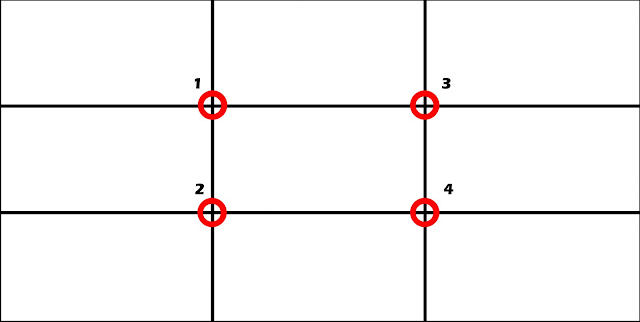

When you're framing your shot, imagine four lines that is about 1/3 of the entire length or height in from either edge. Where those lines intersect, you have a focal point (red circle). A point where the eye almost automatically goes to right away when we look at an image. You can use this to your advantage and position your object, in one of those intersections. It can be in anyone of the four intersections, just pick one that looks good to you. 

Fun fact: Most people will look at the top left intersection first, then the bottom left, then the top right and so on. You will quickly find out using this method, your images will look more pleasing to the eye.


The lines are also very helpful. In landscape shots for example, you want to the horizon line to run along one of the two horizontal lines in the grid - a third from either the top or the bottom.
The vertical lines can be used to line up a tall structure or a person in just the right spot.
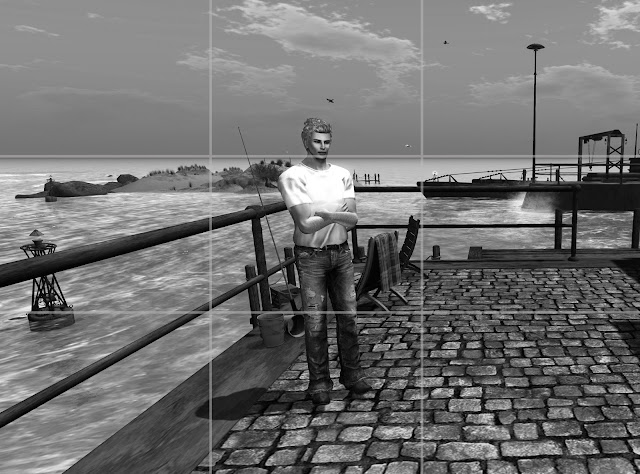


Not the optimal position of the subject, even though the horizon is located along the right line.
If you know you are going to be editing the image in Photoshop or Gimp later, try to make sure to leave extra room for a crop if that's is your intentions. With the crop tool in Photoshop or Gimp you can easy put the object in the desired spot, however, having not done that at the time of shooting, you will now have eliminated a lot of good pixels. Something to think about :)

Last but not least,  - this is a more a guide than a rule. - Rules are there to be broken, and very often you will get an interesting result by doing just that. An example on that could be a shot where the back ground is 100% symmetric or perhaps there is a perfect reflection. But more often than not, using this guide, or rule, will give you a better image, and should result in more favs on Flickr.

Bonus tip: Both Gimp and Photoshop has the rule of third as a guide preset already built in. Here's how you turn them on when you're using the crop tool.

Photoshop:
Select the crop tool, (C) - in the tool bar, click the mesh looking icon, and select the Rule of Third grid. Now drag from corner to corner to select the entire image. As soon as you let go of your mouse the grid will pop up and you can now adjust the handles on each side of the cropping window to place the image the way you like it.


Gimp:
Click the pen cutter like tool....?! (Shift+C) to select the crop tool. In the drop down list, chose Rule of Thirds guides. Now drag over the entire image and your grid will be drawn out. Now you can adjust the crop by using the handles in each corner to get the composition right.